Managing your Samsung Refrigerator Using SmartThings
 Please Note: The information on this page is for Australian products only. Models, sequences, error codes or settings will vary depending on location and/or where the product had been purchased. To be redirected to your local support page please click here.
Experience Various Features with SmartThings
The SmartThings App is a simple, easy remote controller for your appliance. To use the various and convenient refrigerator functions via the app, connect your Samsung refrigerator* to the SmartThings app on your smartphone. Simply tap the function categories that you want and manage settings. The SmartThings App can help you manage the cooling temperature and find the most efficient ways to keep your food fresh.
Make sure your fridge and smartphone are both connected to a Wi-Fi network before starting. Also, sync your Samsung account and SmatThings App with your refrigerator.
NOTE: The SmartThings App is available on Android and iOS devices. A Wi-Fi connection and a Samsung account are required. Data fees may apply.
*The SmartThings App connection and available features may vary depending on the refrigerator model you have. Please check your model number on the Compatible Devices page to be sure your fridge is SmartThings compatible.

Note:
- Available technologies and functions may vary depending on the country, service provider, network environment, or product.
- Before you try out the app connection, be sure to check if your device's software and related apps are updated to the latest version.
- Mobile screen images on this content may vary depending on the device model you have.
Basic Settings
Once your Refrigerator is Connected to SmartThings, tap the Refrigerator card and tap the 3 dots on the top right side of the screen to manage the basic settings.
Edit Search and edit your Country and Location.
Energy Monitor You can Monitor Energy Usage with the Energy Monitor here.
Information Information about your fridge. You can see the model number, information, and device type here.


Features
There are a number of features you can access via the SmartThings app. Here's how to use a few of them. Please be aware that features can vary between models. Please consult your User Manual for more detailed and specific information.
Temperature


Set the temperature of the Fridge and Freezer by adjusting the 'Temperature' bar under the Fridge or Freezer section.
Generally, the ideal fridge temperature is 3°C, and for freezers, -19°C.
Ice Maker


You can turn the ice making function on or off, and check the current settings of the function.
For compatible models, you can select which ice type you'd like: 'Cubed Ice' or 'Ice Bites'.
Power Cool / Freeze


If you want to chill food quicker for optimal freshness, use the 'Power cool'/'Power freeze' sliders.
Cold air is blown into the refrigerator to reduce the inside temperature to 1°C quickly but temporarily.
Selecting a Mode
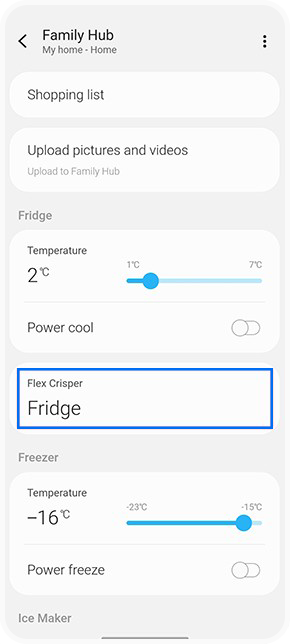
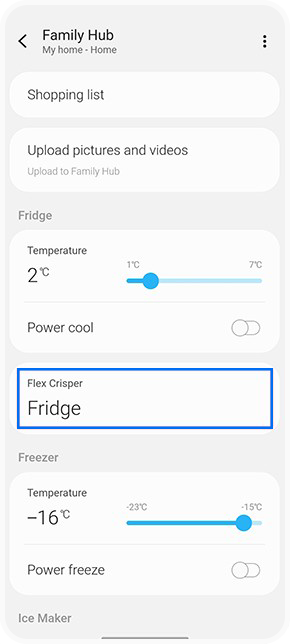
01 Select Flex Crisper to change the mode for the Fridge.
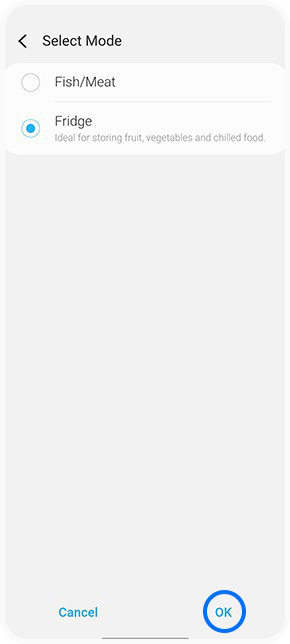
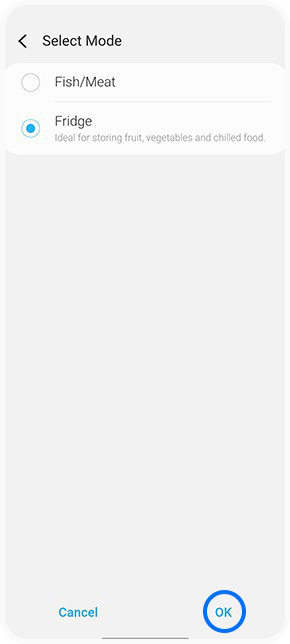
02 Select the Mode and press OK.
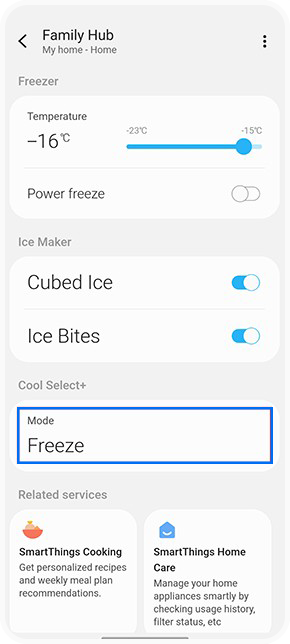
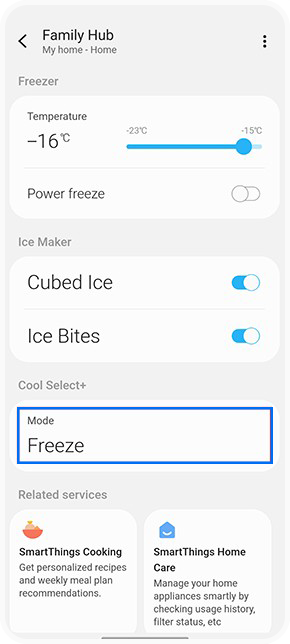
03 Select Cool Select+ to change the mode for the Freezer.


04 Select your preferred Mode and press OK.
Family Hub Features
There are a number of features that are exclusive to Family Hub fridges over a traditional one.
To learn more about Fridge Manager on Family Hub, Click Here.
Shopping List
When connected to your Samsung Account, you are able to monitor and manage your shopping list via the SmartThings App.
You can add items by selecting them and tapping 'Add'.


Upload Pictures and Videos
You can choose to upload pictures or videos onto your Family Hub for display.
After tapping either 'Picture' or 'Video', you will be redirected to your phone gallery where you can then select the media you would like to send to your Family Hub to display.
To learn more about Uploading Pictures and Videos to your Family Hub, Click Here.


For further assistance, please contact our Chat Support team. To find your Samsung product's User Manual, head to Manuals & Downloads.

Thank you for your feedback!
Please answer all questions.
Contact Info
Contact us
WhatsApp
![]()
![]()

