Adjust Sound Settings on your Samsung TV
 Please Note: The information on this page is for Australian products only. Models, sequences or settings will vary depending on location and/or where the product had been purchased. To be redirected to your local support page please click here.
Adjusting the sound quality on your Samsung Smart TV is easy, thanks to the Sound settings menu. You’ll be able to customise the sound using advanced settings such as Auto Volume and HDMI-eARC Mode and change the Sound Mode depending on the content you’re watching.
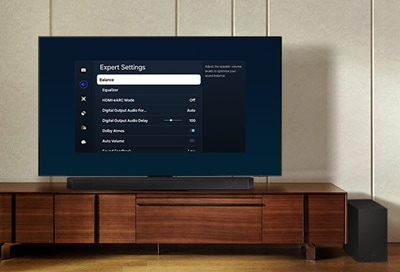
You can change the TV’s Sound Mode using the Settings menu. Additional sound adjustments can be made using Expert Settings.
Note: Supported functions may vary depending on the model, region, input signal and software version.
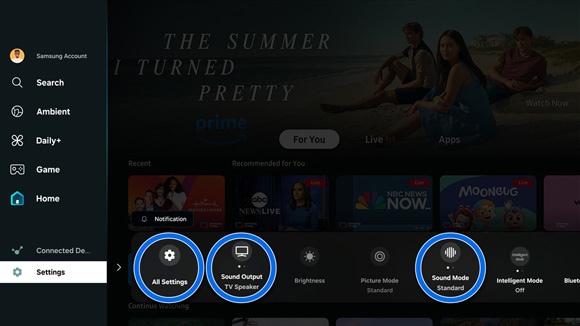
- Standard: Provides balanced sound.
- Amplify: Amplify the mid and high tones. This is helpful when dialogue is difficult to hear.
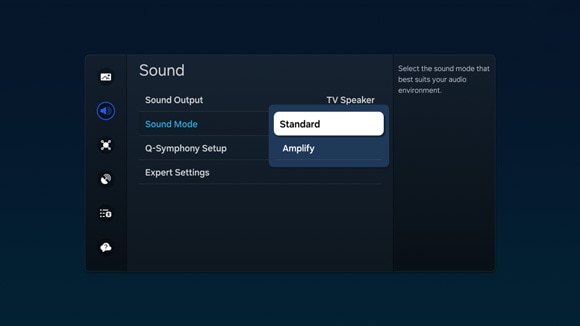
Notes:
- When an external device is connected, the Sound Mode may change accordingly.
- When Game Mode is enabled, Picture Mode and Sound Mode are switched to Game automatically.
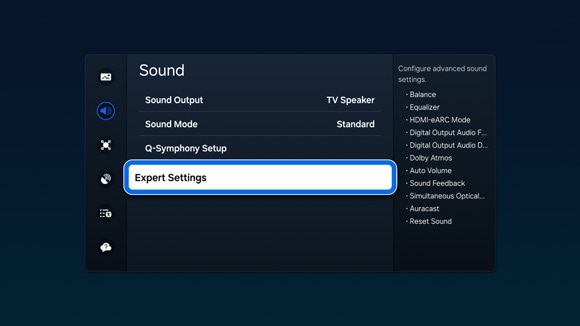
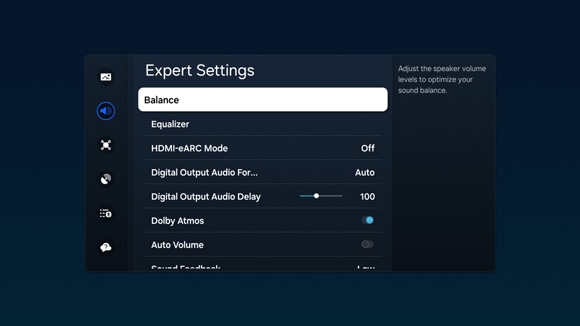
If you adjusted the TV’s sound settings and need to start over, you can reset the sound settings using Expert Settings.
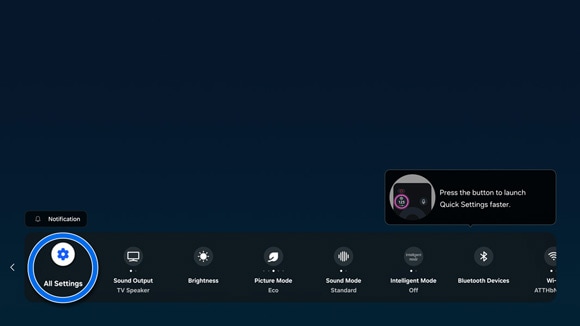
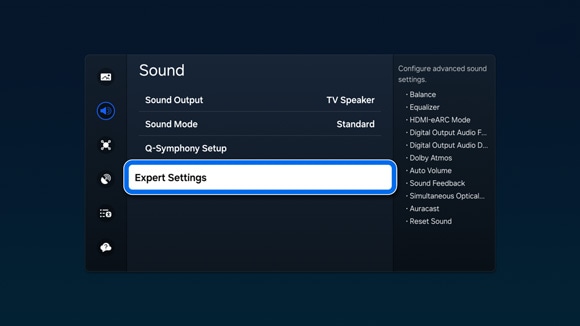
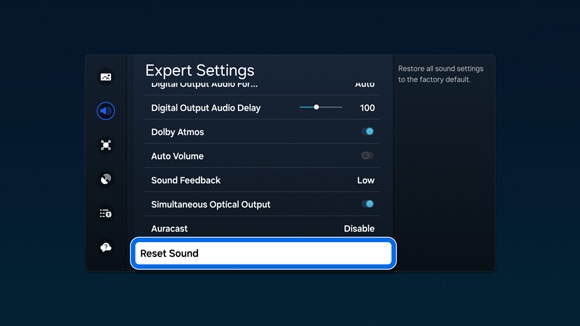
If you are having trouble with the sound on your TV, you can refer to the content below for assistance.
There is no sound or the sound is too low at maximum volume
There are a few potential solutions to try, including checking your TV's volume control.
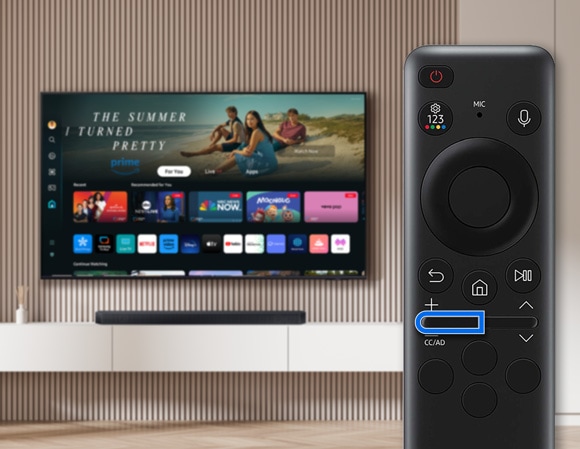
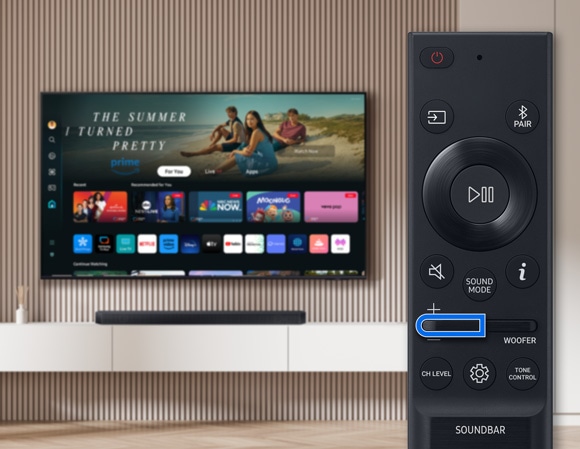
Note: The Volume button label may vary by device, device model, country, or brand.
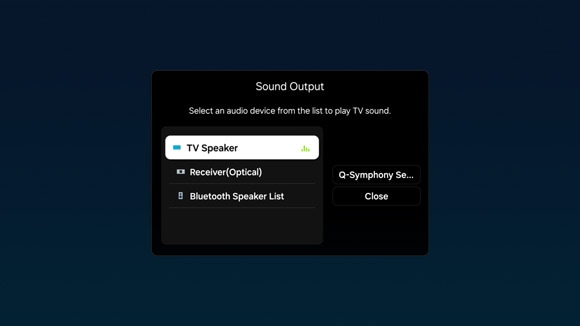
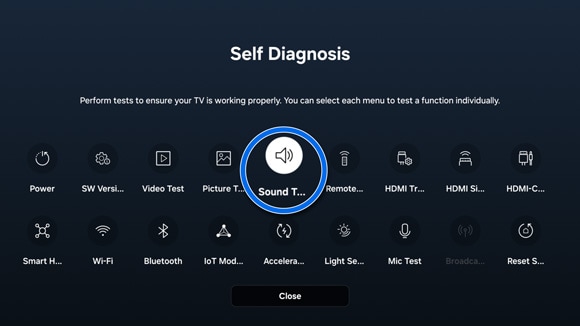
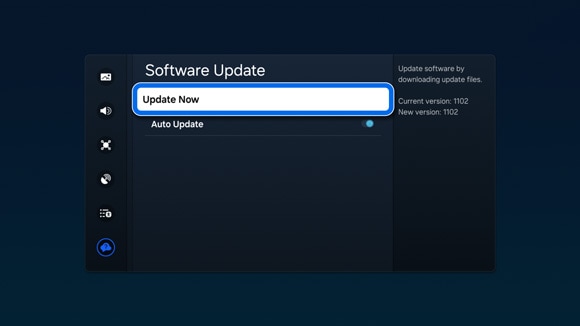
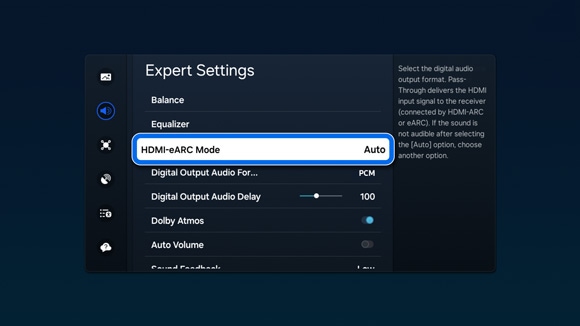
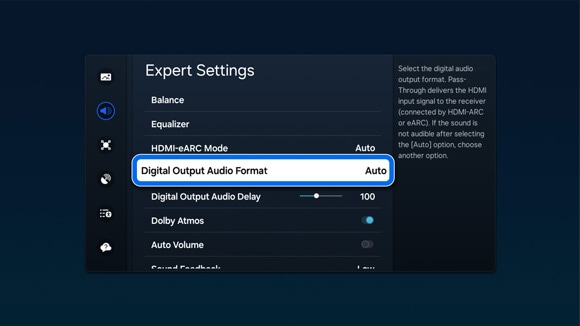
No sound from soundbar connected using HDMI (eARC/ARC)

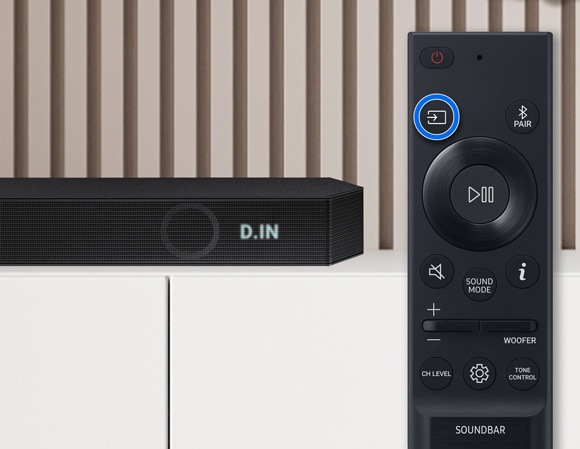
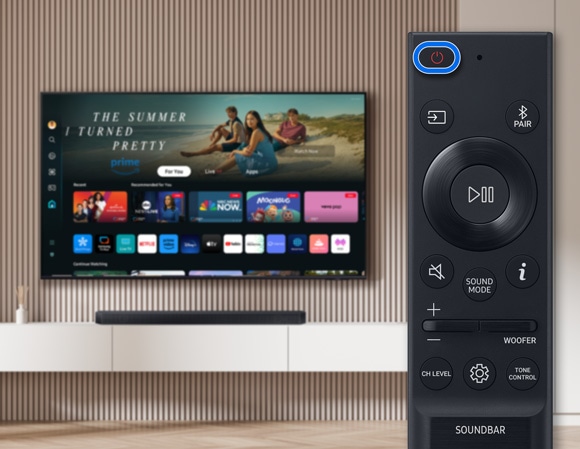
Note: If you select D.IN mode, the soundbar will automatically set the source to TV ARC or TV eARC after a few seconds.
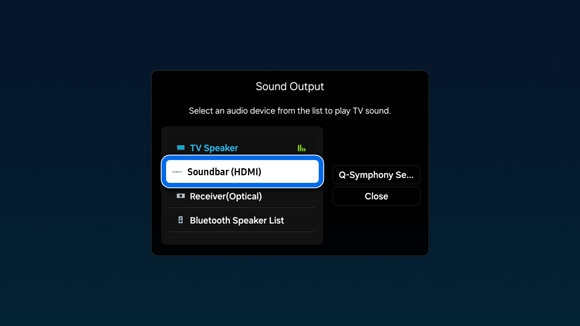
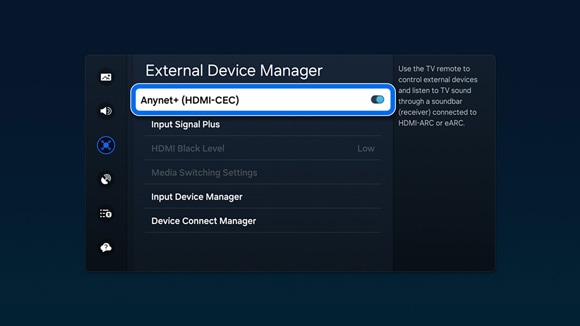
No sound from soundbar connected using Bluetooth
Sound quality may vary depending on different factors. Make sure the Bluetooth speaker is as close as possible to the TV without any obstacles. Do not place the wireless router nearby.
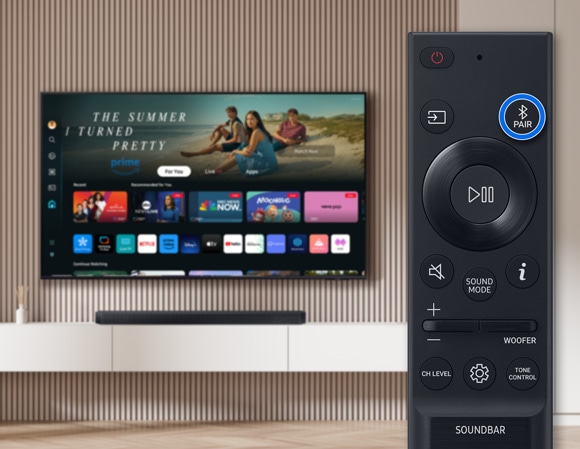
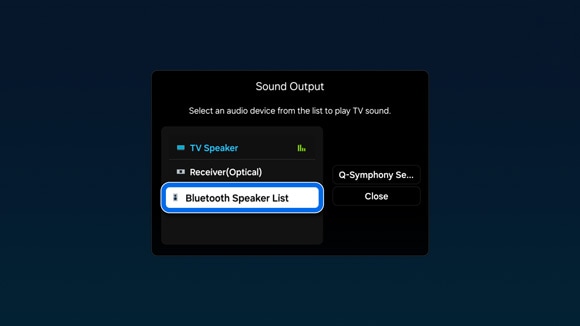
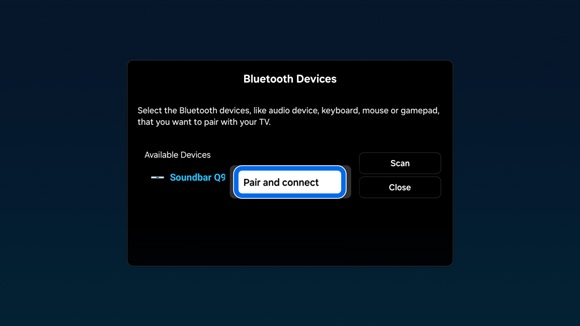
TV automatically turns up or down the volume
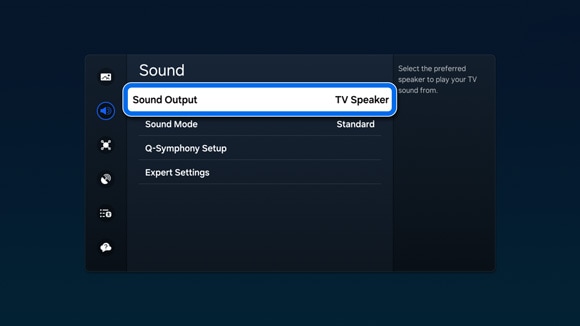
Samsung TVs include features like Active Voice Amplifier and Adaptive Sound+, which adjust volume based on ambient noise. Depending how loud or quiet the room is, the TV may increase or lower the volume automatically. As such you can turn this feature off.
 Settings and then All Settings.
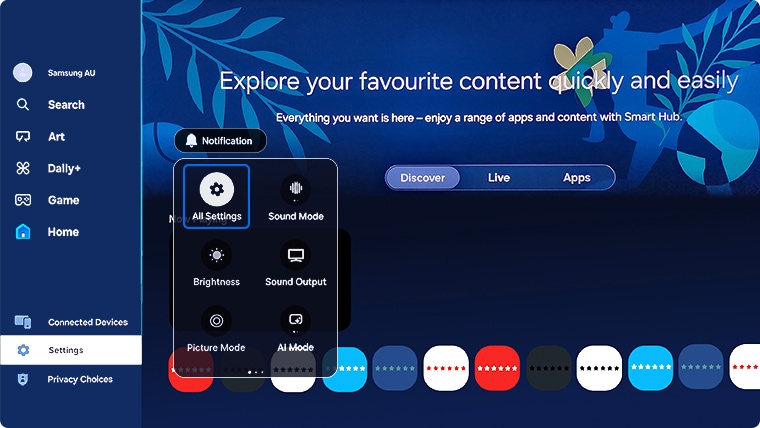
Note: Images were taken from a 2025 model TV. Steps and layout may differ depending on the model of your TV.

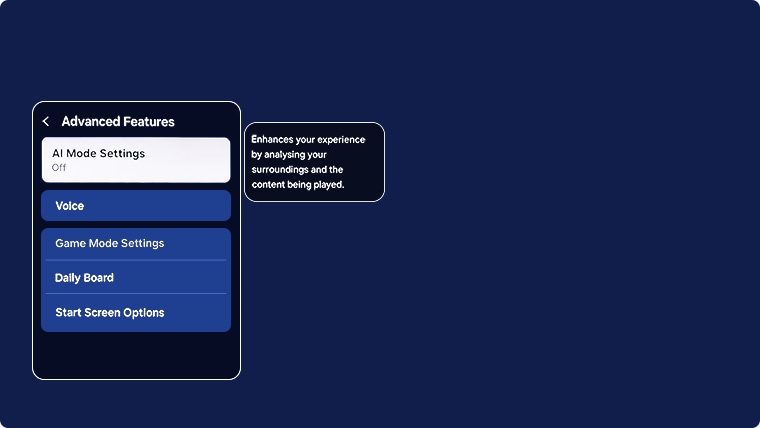

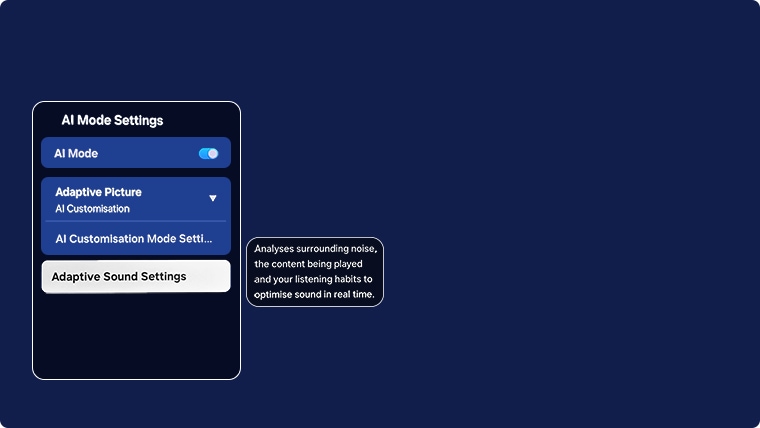
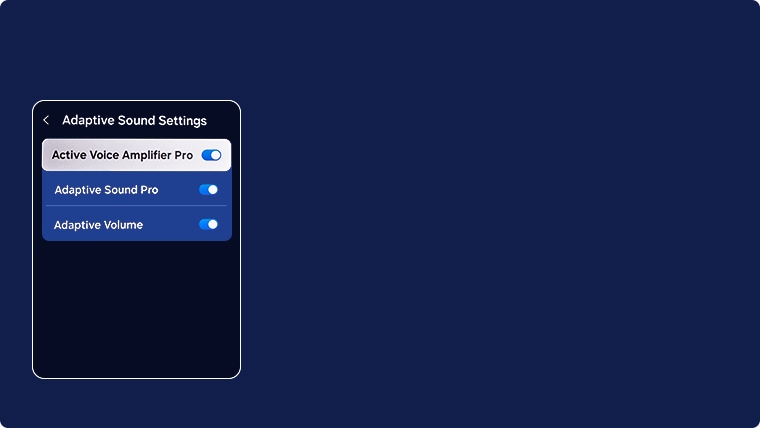
Note: To find Active Voice Amplifier on prior compatible models:
- 2023 - 2024 Model TVs: Settings > All Settings > General & Privacy > Intelligent Mode Settings > Intelligent Mode > turn off Active Voice Amplifier
- 2022 Model TVs: Menu > Settings > All Settings > General & Privacy > Intelligent Mode Settings > Intelligent Mode > turn off Active Voice Amplifier
- 2020 - 2021 Model TVs: Settings > General > Intelligent Mode Settings > turn off Active Voice Amplifier
Notes:
- If you are having trouble with your Samsung Smart TV, you can check for available software updates, as these may contain a solution to your problem.
- Device screenshots and menus may vary depending on the device model and software version.

 This product should be mounted to a wall or other suitable surface to avoid serious injury. Find out more here.
Thank you for your feedback!
Please answer all questions.
Contact Info
Contact us
WhatsApp
![]()
![]()

