How to update the software on your Samsung Smart TV and Smart Monitor
Important Note: The information on this page is for Hong Kong products only. Models, sequences or settings will vary depending on location and/or where the product had been purchased. To be redirected to your local support page please click here.
Software updates for your Samsung Smart TV and Smart Monitor provide access to enhanced features and bug fixes. Additionally, if an OS (Operating System) upgrade is available, you can enjoy the latest User Interface (UI) and new features after installing the upgraded OS.
This guide provides instructions for updating your TV or monitor to the latest version. You can perform software updates or OS upgrades automatically, manually, or by using a USB flash drive.
If your Samsung Smart TV or monitor is connected to a network and the Auto Update option is enabled, your TV or monitor will automatically update when it is turned off. You can follow the steps below to enable Auto Update.
Step 1.
Go to Settings > All Settings.


Step 2.
Select Support.


Step 3.
Select Software Update.


Step 4.
Select Auto Update to turn it on.
When Auto Update is turned on, updates may download while you're watching TV, and the changes will be applied the next time the TV is turned on.


Note:
- Some settings, such as picture or sound, may return to their default settings after the updates.
- If any OS upgrade is available, an upgrade notification will appear when the TV is turned off and then on, regardless of the Auto Update settings.
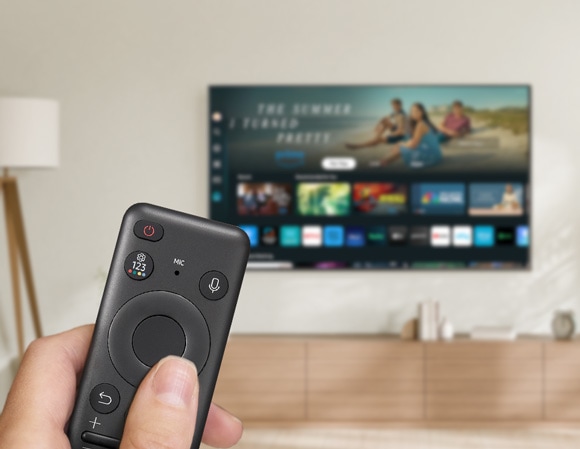
If your Samsung Smart TV or monitor is connected to a network, you can manually update the software using the Software Update menu. If any OS upgrade is available, you can also install the upgrade here.
Updating the software
Step 1.
Go to Settings > All Settings.
Step 2.
Select Support.
Step 3.
Select Software Update.
Step 4.
Select Update Now. Your TV or monitor will check for available updates. If an update is available, select Yes to begin the update process immediately.


Note:
- Ensure your TV is connected to the Internet.
- Some settings, such as picture or sound, may return to their default settings after the updates.
Watch the video on "How to update the software on your Samsung TV over the internet":
Upgrading the OS (Operating System)
If an OS upgrade is available for your TV, you can also install the upgrade in the Update Now menu.
Note:
- Ensure your TV is connected to the Internet.
- Before upgrading your OS, your TV software must be updated to the latest version.
- After upgrading to a new OS, you cannot revert to the previous version.
- The upgrade will take at least 10 minutes to complete, and the TV will restart automatically once the process is finished.
- Do not turn off the TV during the update.
- Some settings, such as picture or sound, may return to their default settings.
Step 1.
Select Update Now. If an OS upgrade is available for your TV, you will be directed to the OS upgrade screen.
Step 2.
You can choose to Upgrade Now or Upgrade While Off. Follow any on-screen instructions to complete the upgrade after selecting your option.


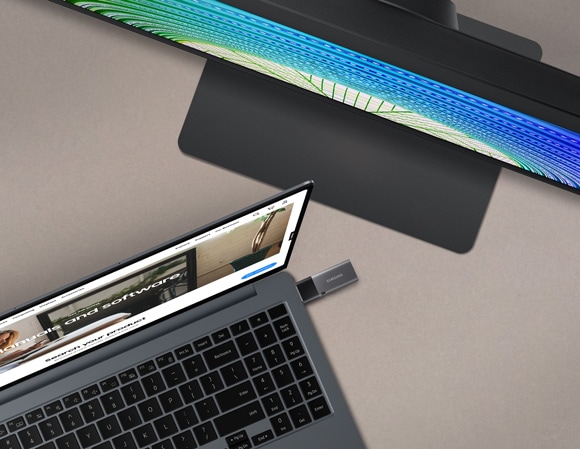
If your Samsung Smart TV or monitor is not connected to a network, you can download the latest software file from the Samsung website and save it to a USB flash drive. Then, you can connect the USB flash drive to your TV or monitor to perform the update.
1. Check the Model Code and Software Version of your TV/Monitor
Step 1.
Go to Settings > All Settings.
Step 2.
Select Support.
Step 3.
Select About the TV or About the Monitor.


Step 4.
Take note of the (1) Model Code and (2) Software version of your TV/Monitor for your reference.
Example from the demonstration:
Model Code: QA55QN90FAJXZK
Software name: T-PTMLCUABC
Software version: 0090-1301.0


2. Download the update file from a computer
Step 1.
Using a computer, visit the Manual & Downloads section on the Samsung website.


Step 2.
Enter the Model Code to access the support page for your specific model. You can also select your product type and then search for your product.


Step 3.
Look for the item Upgrade File(USB type),MAIN


Note:
- Model Codes may vary depending on your region.
- Availability of software update files may vary depending on your region or model.
Step 4.
Check the download file version. If it matches the TV version, the TV is up to date. If higher, an update is required. Click Download to download the file.


Step 5.
When the file has finished downloading, unzip the file, then copy or move all of the files that were included in the zip file to a USB flash drive, but do not place them inside any other folders.


Note:
- Save the update package in the USB drive’s top-level folder (not inside any other folders). Otherwise, the TV or monitor will not be able to locate the update package. There should be only one subfolder named "image" inside the update package folder.
- If there are multiple files, place all of the files in the USB drive’s top-level folder.
3. Update installation
Step 1.
Insert the USB flash drive into a USB port on your TV or monitor.


Note:
- The location of the USB port may vary depending on the model.
- For TVs connected to a Samsung One Connect or Wireless One Connect, insert the USB flash drive into the connected One Connect Box or Wireless One Connect Box, not directly into the TV.
Step 2.
Go to Settings > All Settings.
Step 3.
Select Support.
Step 4.
Select Software Update.


Step 5.
Select Update Now. You will be prompted to confirm the update installation from your USB drive. Select Yes to begin the update.


Note:
- The TV will restart automatically once the update is complete.
- Do not turn off the TV or remove the USB flash drive during the update.
Watch the video on "How to update the software on your Samsung TV using a USB flash drive":
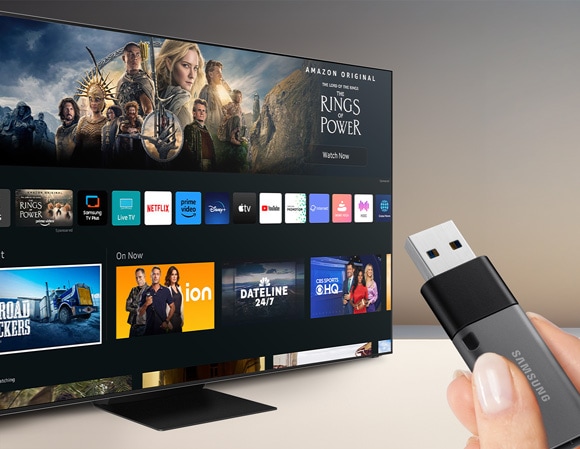
For certain TV/Monitor models, you can upgrade your OS using a USB flash drive. To do this, your TV/Monitor software has to be updated to the latest version. If your TV/Monitor software is not the latest version, please refer to the guide in the above sections to update your software.
Note:
- Before upgrading your OS, your TV/Monitor software must be updated to the latest version.
- After upgrading to a new OS, you cannot revert to the previous version.
- The upgrade will take at least 10 minutes to complete, and the TV/Monitor will restart automatically once the process is finished.
- Some settings, such as picture or sound, may return to their default settings.
1. Check the Model Code and Software Version of your TV/Monitor
Step 1.
Go to Settings > All Settings.
Step 2.
Select Support.
Step 3.
Select About the TV or About the Monitor.
Step 4.
Take note of the (1) Model Code and (2) Software version of your TV/Monitor for your reference.
Example from the demonstration:
Model Code: QA55Q70CAJXZK
Software name: T-NKM2CUABC
Software version: 2000.2


2. Download the upgrade file from a computer
Step 1.
Using a computer, visit the Manual & Downloads section on the Samsung website.
Step 2.
Enter the Model Code to access the support page for your specific model. You can also select your product type and then search for your product.
Step 3.
Look for the item Upgrade File(USB type),MAIN.


Note:
- Model Codes may vary depending on your region.
- Availability of software update files may vary depending on your region or model.
Step 4.
If the MAIN version of the upgrade file matches your TV's software version, your TV is ready for the OS upgrade. If not, please refer to the guide above to update your software.


Step 5.
Look for the item OS Upgrade file(USB type) that matches your TV's software name. Click Download to download the upgrade file.


If there are multiple OS Upgrade files available, install the upgrades one by one starting from the lowest version.
Example: 0080➔0090➔0100...


Note:
- Software names may vary depending on your region.
- Availability of OS upgrade files may vary depending on your region or model.
- If multiple OS upgrade files are available, update in order from the lowest to the highest version.
- You cannot jump directly to the latest OS and software version. Update in order from the lower version (0080➔0090➔0100...).
Step 6.
When the file has finished downloading, unzip the file, then copy or move all of the files that were included in the zip file to a USB flash drive, but do not place them inside any other folders.


Note:
- Save the update package in the USB drive’s top-level folder (not inside any other folders). Otherwise, the TV or monitor will not be able to locate the update package. There should be only one subfolder named "image" inside the update package folder.
- If there are multiple files, place all of the files in the USB drive’s top-level folder.
3. Upgrade installation
Step 1.
Insert the USB flash drive into a USB port on your TV or monitor.
Note:
- The location of the USB port may vary depending on the model.
- For TVs connected to a Samsung One Connect or Wireless One Connect, insert the USB flash drive into the connected One Connect Box or Wireless One Connect Box, not directly into the TV.
Step 2.
Go to Settings > All Settings.
Step 3.
Select Support.
Step 4.
Select Software Update.


Step 5.
Select Update Now. You will be prompted to confirm the upgrade installation from your USB drive. Select Yes > Upgrade Now to begin the update.


Step 6.
Wait for your TV to finish the upgrade process. Once the OS upgrade is finished, a screen introducing the updated features will appear. After reviewing, press the Get Started button to complete the OS upgrade.


Note: Do not turn off the TV or remove the USB flash drive during the upgrade.
Step 7.
After finishing the upgrade, go to About the TV and compare the version shown on your TV with the latest version available on Samsung.com.


Step 8.
If the version on your TV does not match the latest version on the website, an additional update may be required. Go to the Update Now menu to update to the latest version.


Step 9.
Repeat the upgrade installation and software update process until the software version on your TV matches the latest version listed on Samsung.com.


Note:
- Some firmware updates require intermediate versions before reaching the latest version.
- After upgrading to a new OS, you cannot revert to the previous version.
- The upgrade will take at least 10 minutes to complete, and the TV will restart automatically once the process is finished.
- Some settings, such as picture or sound, may return to their default settings.
Watch the video on "How to update the OS on your Samsung TV using a USB flash drive":
Note:
- If you are having trouble with your Samsung Smart TV, you should always check to see if there are any software updates available. Downloading the latest update may fix your problem.
- Device screenshots, function availability, setting path, menu options and layout may vary depending on the device model and software version.
If the above information does not match what your product is showing, you may check the User Manual for your product. If you are unable to solve the problem, please contact us for further assistance.
Thank you for your feedback!
Please answer all questions.
RC01_Static Content : This text is only displayed on the editor page