How to take portraits using Live focus feature in Galaxy Note8?
The Live focus feature allows the camera to capture the subject and the background separately so that you can get an out-of-focus photo with the focus on the subject. Adjust the background blur effect on the preview screen and take a photo that highlights the subject.
Navigate to Camera → LIVE FOCUS → Focus → Capture → ADJUST BACKGROUND BLUR → SAVE
Pictorial representation of the above settings are as follows :
1. From the Apps list, tap Camera.
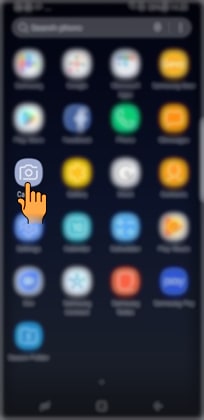
2. On the preview screen, tap LIVE FOCUS to use the Live focus feature.
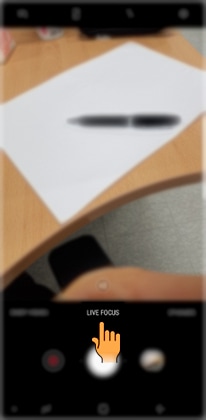
3. Focus on a particular subject by dragging the background blur adjustment bar to the left or right to adjust the blur level.
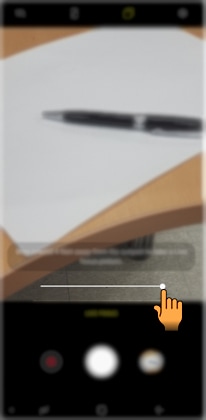
4. Tap Camera icon to take a photo.

NOTE:
● This feature is recommended that you position subjects about 1.2 m away from the camera lens.
● Position the subject that you want to focus on close to the device. Also, use this feature in a place that has sufficient light.
● This feature is available only in AUTO mode.
You can also edit the background blur level of a photo taken with the Live focus feature in Gallery.
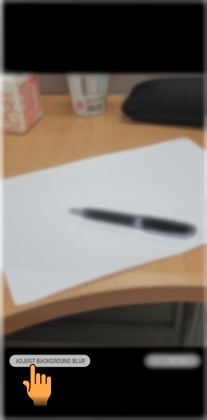
5. Select a photo taken with the Live focus feature and tap ADJUST BACKGROUND BLUR.
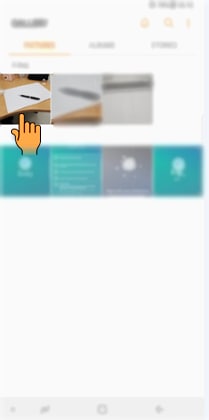
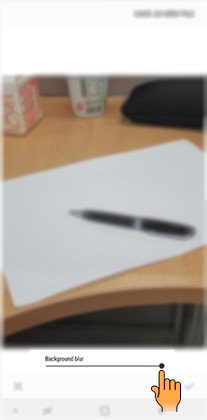
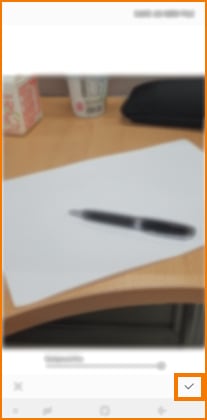
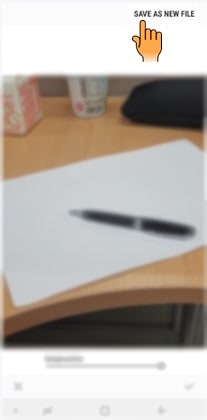
6. Drag the background blur adjustment bar to the left or right to adjust the blur level, and then tap √ to save photo. To save the edited photo as another file, tap SAVE AS NEW FILE.
Thank you for your feedback!
Please answer all questions.
Contact Info
Digital Service Center
![DSC icon image]()
![DSC icon image]()



Scan to access
WhatsApp
![WhatsApp image icon]()
![WhatsApp image icon]()


Available 24 Hours / 7 days
WhatsApp@ 1-800-5-726-7864

Scan to access
Chat
![Samsung India Support WebChat icon]()
![Samsung India Support WebChat icon]()


Languages offered: English/ हिन्दी/ Indian Regional Languages


Remote Service
![Image of RM icon]()
![Image of RM icon]()


CEO Office
![Image of CEO icon]()
![Image of CEO icon]()


Phone Support (India)
![image of phone dialer]()
![image of phone dialer]()


Phone Support (Bangladesh, Sri Lanka, Nepal)
![Image of caller icon]()
![Image of caller icon]()
RC01_Static Content : This text is only displayed on the editor page